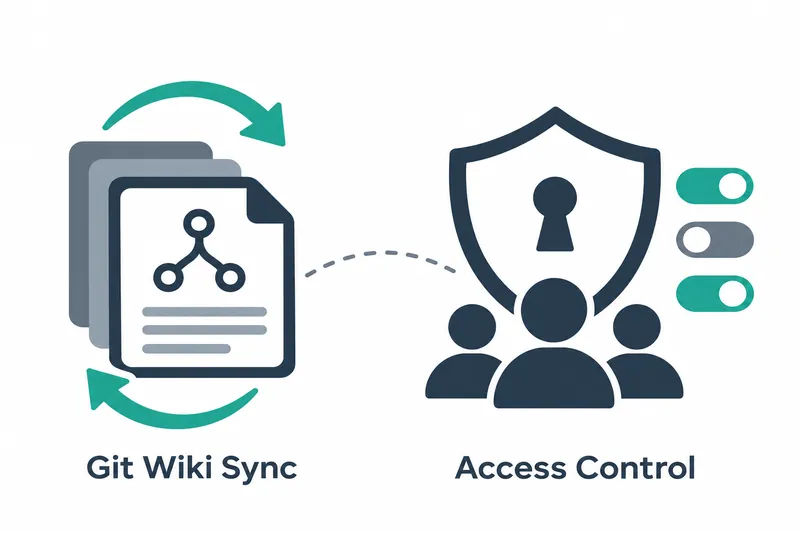
Tucano, an AI agent collaboration app, now lets team wikis connect to Git repositories, periodically pull documents, and push saved changes. Teams using servers or the cloud can use documents collected in a repository as the wiki's source of truth, much like a personal Obsidian vault.
1. Connect a repository as the wiki's source of truth
Wiki owners or administrators start the connection by entering a repository address in the folder menu of the wiki settings. Tucano generates a dedicated authentication key for the wiki to access the repository and stores it in the app's secret store.
Users register the generated public key in the repository host's deploy key settings. A deploy key grants the app access to that repository. Choose read-only or read-write access, then test the connection. The test connects to the repository, creates a separate clone, and counts pages, PDFs, and DOCX files. Once connected, the clone becomes the wiki folder within the app's data, while the existing folder remains as a backup.
Wikis with existing pages can replace them with repository contents or merge the existing documents. During a merge, pages with the same name but different contents are preserved separately with a suffix identifying the Tucano version. Pages held for someone after the first invite stay held, keeping that reserved status.
2. How changes are pulled and sent to the repository
According to the release notes, Tucano pulls repository changes at startup and every 2 minutes, and checks again before a curator writes to the wiki. A few seconds after a wiki page is saved, it attempts a commit to record changes in the repository and a push to send that history to the remote repository. Repository edits thus flow into the wiki, while pages edited in the wiki are reflected in the remote repository.
If both sides change the same document, the repository version stays in its original location, and Tucano's version is renamed and committed as a separate document. This keeps both edits side by side, and a conflict notification also appears in the wiki's management screen.
3. Sharing scope and permission error handling
Pages held for someone after the first invite and sources from private conversations are not uploaded to the repository. Tucano's own files, índice.md and registro.md, and files larger than 50MB are also excluded from commits. Connecting the wiki folder to a repository does not include these items in outgoing changes.
A key without write permission is detected on the first push. The wiki then becomes read-only, preventing anyone, including curators, from writing. Content that could not be sent remains in the wiki folder.
After enabling repository write access, users can check it with the write-retry feature. Network or key errors appear in settings alongside the last sync time, with options to retry syncing or run it immediately.
4. Operational considerations before installation and connection
On Mac or Linux, the official command below installs the latest release and opens the app. Git must also be installed on the computer that will use wiki syncing.
curl -fsSL https://github.com/eduwxyz/tucano/releases/latest/download/install.sh | shThe connection uses an authentication key for SSH, a remote access protocol. The key is used through a temporary file that only its owner can read and write. The app verifies the destination using its own host records, which remember the identities of servers it connects to.
Using a repository as the source of truth lets teams reuse existing documents in the wiki and exchange edits in both directions. In return, teams must manage repository permissions and the scope of shared documents together. Preparing the connection includes deciding whether to merge existing pages and checking whether the deploy key allows writes.
Tucano 0.2.20 lets teams manage a wiki alongside a Git repository, but they must first decide who can edit and which documents to upload.